
Quick win for the customer re-deploying machines in production and need their machines to reset the TPM (Trusted Platform Module) key automatically without human intervention.
OK, I don’t mind using cmdlets, but I prefer working with WMI classes. If you look closely, you can find all the methods you need for your situation.
So, before I write the script, I research the WMI class to see what we can use. Is there a TPM class available? And how many methods does it have, if any?
A quick search in the browser shows me this link:
https://learn.microsoft.com/en-us/windows/win32/secprov/win32-tpm
Good, we are getting somewhere. In order for us to connect to WMI, we need to navigate to the namespace.
Ok, easily solved, if you scroll down to the bottom of the page, you will see a Requirements table which has the following row:
| Namespace | Root\CIMV2\Security\MicrosoftTpm |
Now we have the class and the namespace! So by applying this code we should get some more info:
Get-WmiObject -Namespace "Root\CIMv2\Security\MicrosoftTpm" -Class Win32_Tpm | Get-Member -MemberType Method | Select NameWhen you run the above code, you should see the following output in your console:
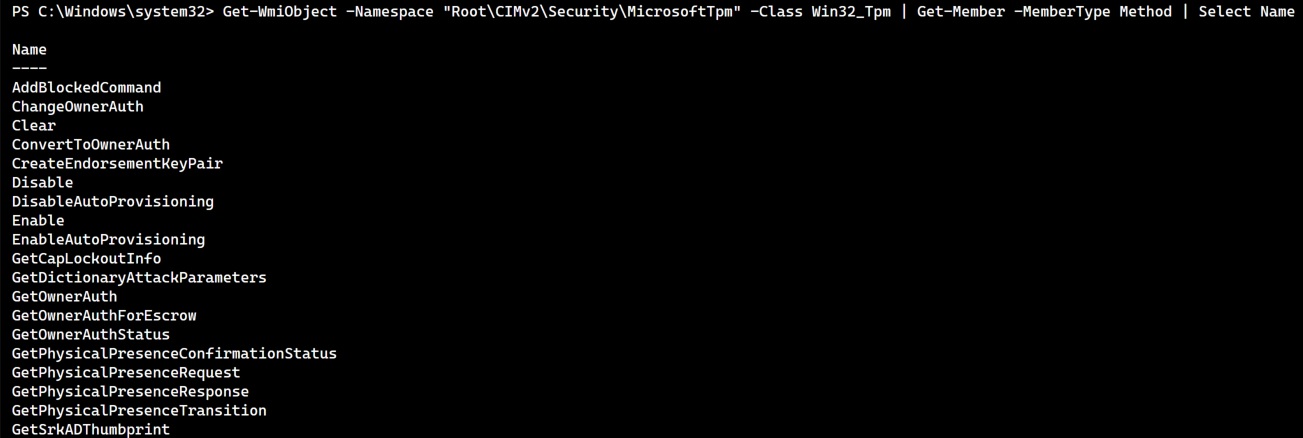
Nice! Loads of methods to do our bidding! So, which one to use? 🤔
On the MSFT site, you can find a method called SetPhysicalPresenceRequest along with its settings. We can use 16 of these settings to reset the Tpm automatically, without human intervention.
Always test against a pilot group of devices in a controlled environment before rolling it out to production.
try {
    $tpmProvider = Get-WmiObject -Namespace "Root\CIMv2\Security\MicrosoftTpm" -Class Win32_Tpm | Select-Object -ExpandProperty __PATH
    $resetResult = $tpmProvider.SetPhysicalPresenceRequest(16)
    if ($resetResult.ReturnValue -eq 0) {
        Write-Host "TPM has been successfully reset."
    } else {
        Write-Host "Failed to reset TPM. Error code: $($resetResult.ReturnValue)"
    }
} catch {
    Write-Host "Failed to reset TPM. Error: $($_.Exception.Message)"
}
Code Breakdown ⚛️
- The obvious,
Try/Catchblock will attempt to run the code, and if there is an error, it will capture the error message for you to troubleshoot later. - First we grab all the data by talking to the
MicrosoftTpmnamespace andwin32_Tpmclass of the device, and store it into a variable called$tpmProvider. - Using the method
SetPhysicalPresenceRequest(16)by attaching it to the$tpmProvider, this will attempt to run the method and in this case reset the TPM value. - The outcome depends on the
ReturnValueand if it comes back as Zero, we are good to go.
Note! Be mindful that some device OEMs require a BIOS setting change to allow setting 16. Always test, then deploy to the rest! 👌🏼

 mattGPT
Leave a reply to Oscar Cancel reply